
The 30-Minute Audit: 7 Small Business Tasks You Can Automate in Microsoft 365 This Week

If you’re running a 2-10 person team, your biggest cost isn’t software. It’s the 2 hours a day lost to repetitive admin. The good news: most of it can be automated right inside Microsoft 365 with Copilot and Power Automate, no developer needed.

Here’s what to tackle first, with exact steps you can set up this week:

1. Client follow-ups that never slip through

The problem: You send a quote or invoice, then forget to check if they opened it or replied.
The fix: Use Outlook + Copilot + Power Automate.
Set a rule: when you send an email tagged “Follow-up in 3 days”, Power Automate creates a Teams task and drafts a reminder email. Copilot writes the reminder based on the original thread so it doesn’t sound robotic.
Time saved: 1-2 hours/week per sales person.

2. Turn meeting notes into action items automatically

The problem: Meetings end, nothing happens because notes live in 3 places.
The fix: In Teams, turn on Copilot meeting recap. After the call, have Power Automate push action items to Planner or To Do, assign owners, and post a summary in the project channel.
Time saved: 30 min per meeting. No more “who was doing that?”

3. Invoice and expense data entry

The problem: Manually typing invoice details into Excel or accounting software.
The fix: Use Power Automate + AI Builder. Set up a flow that watches a shared email inbox or SharePoint folder, extracts data from PDFs, and dumps it into Excel or pushes to QuickBooks/Xero.
Time saved: 2-4 hours/week for ops/admin.

4. Client onboarding without 15 emails

The problem: Onboarding a new client means sending the same docs, links, and forms every time.
The fix: Build a “New Client” template in SharePoint with a Power Automate flow. One form submission creates the client folder, sends a welcome pack, schedules a kickoff meeting, and adds them to your CRM list.
Time saved: 45 min per client. Looks way more professional too.

5. Social media and content drafts

The problem: You know you should post more, but writing takes forever.
The fix: Use Copilot in Word to turn a client case study or sales call transcript into 3 LinkedIn posts and 1 email blurb. Schedule it with Microsoft Publisher or Buffer.
Time saved: 1 hour/week. Keeps you visible without hiring a marketer.

6. Sales pipeline updates from email

The problem: Your CRM is always out of date because no one logs calls.
The fix: Use Copilot in Outlook to summarize client emails and auto-update a SharePoint list or Dynamics CRM. Set a rule: emails from clients get flagged, Copilot extracts deal stage and next step.
Time saved: 1 hour/week per salesperson. Your pipeline stays accurate.

7. Daily briefing so you start focused

The problem: You open 20 tabs and 50 emails and lose 30 min figuring out what matters.
The fix: Use the new Autopilot/Scout daily briefing in Windows 11. It pulls urgent emails, meetings, and tasks from Teams, Outlook, and Planner into one summary each morning.
Time saved: 20-30 min every morning. You start the day with a plan.


How to actually make this happen without losing a week

  1. Pick one task from above that annoys you most. Don’t try all 7 at once.
  2. Block 30 minutes on a Tuesday or Wednesday morning when things are quiet.
  3. Use Copilot Chat to help you build the flow. Prompt: “Create a Power Automate flow that watches my inbox for emails with ‘Invoice’ and saves the PDF to SharePoint.” It’ll write the steps for you.
  4. Test it with 3 real examples before turning it on for everything.
  5. Measure it. If it doesn’t save at least 30 min/week, tweak or drop it.

The rule of thumb for small teams

If you do a task more than 3 times a week and it takes more than 5 minutes, it’s worth automating. Microsoft 365 already has the tools – Copilot handles the thinking, Power Automate handles the clicking.

The goal isn’t to run a “tech-forward” business. It’s to stop doing work that a computer can do, so you and your team can focus on clients, sales, and the stuff that actually grows revenue.


Stop wasting time on tasks Copilot can do for you.

Start your Microsoft 365 with Copilot trial now and automate your week in under 30 minutes.

Questions? Contact us today — we’ll set you up with the right plan, fast.

[Get Started] | [Talk to an Expert]
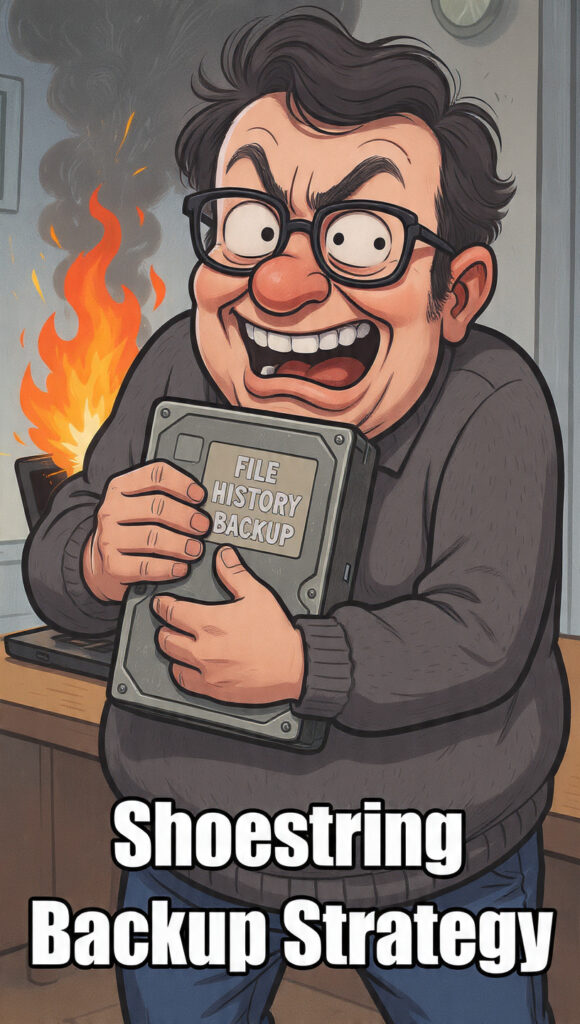
“Shoestring Backup”: Is File History to a Network Drive Good Enough?

If your budget is basically “coffee and hope,” you’ve probably looked at Windows File History and thought: “I’ll just back it up to the NAS in the closet and call it a day.”

It works. But “works” and “gets you out of a total disaster” are two different things. Here’s the straight answer:

1. What File History actually does

File History backs up versions of files in your Libraries, Desktop, Contacts, and Favorites to another drive – USB, internal, or network. It’s incremental, automatic, and you can roll back to “that spreadsheet from Tuesday at 3pm.”

What it doesn’t do:

  • Back up installed programs/apps
  • Back up Windows itself, settings, drivers
  • Back up files outside your user folders unless you add them manually

So if your computer crashes, you can recover your data, but not your apps or Windows install.

2. What happens if the computer crashes

Scenario A: Hard drive dies, PC boots fine
Plug in a new drive, reinstall Windows, point File History to the network drive → restore your files. You’re back in business in an hour or two, minus reinstalling apps.

Scenario B: Whole PC dies, motherboard/CPU fried
Same deal. As long as the network drive survived, your files are safe. You’ll need another PC and a fresh Windows install.

Scenario C: Ransomware or the network drive gets wiped
This is the gotcha. File History to a single network drive has no air gap and no versioning protection against deletion. If malware deletes the backup share, you’re cooked.

3. Is it “sufficient” on a shoestring budget?

Yes, if:

  • Your priority is personal files, photos, docs, client work
  • You’re okay reinstalling Chrome, Office, Adobe, etc. from scratch
  • The network drive is separate from the PC and has its own backups or snapshots

No, if:

  • You need to be back up and running in 30 min with all apps and settings
  • You can’t afford 2-4 hours of reinstall + setup time
  • You have zero other copies of that data

4. The $0 upgrade to make it actually safe

File History + network drive is 60% of a real backup. Add these 2 things for free/cheap:

  1. 3-2-1 Lite rule: 3 copies, 2 different media, 1 offsite.
    Example: PC → Network Drive → Free Google Drive/OneDrive for critical folders. 5GB-15GB free covers most people’s “can’t lose” files.
  2. System Image once a month: Use Windows “Backup and Restore (Windows 7)” to make a full system image to the same network drive. It’s clunky but lets you restore Windows + apps in one go if the drive is intact.

5. The bottom line

Can you recover your data if the computer crashes? Yes, if the network drive is alive and not encrypted by ransomware.
Can you recover your apps? No. You’ll reinstall.
Is it enough for a shoestring budget? It’s the best you can do for $0. Just don’t treat it as set-and-forget. Test a restore once, and keep your 2-3 most critical folders synced to free cloud storage too.


Want a 10-min checklist to make your File History setup actually disaster-proof for free? Drop “CHECKLIST” and I’ll send you the step-by-step + what to test.

OpenVPN Windows client auto connect on startup

A common issue when accessing shared folders when connecting from remote is forgetting to connect OpenVPN to connect to your office network.

Ideally, OpenVPN should auto connect on startup so that users will not have issue connecting to network share due to this and then subsequently remove the mapping.

One way to get it to run when logged in, is by placing a shortcut in the usual startup folder.

(For all users, %ProgramData%\Microsoft\Windows\Start Menu\Programs\Startup; or for the current user only, %APPDATA%\Microsoft\Windows\Start Menu\Programs\Startup.)

Create shortcut on your desktop pointing to C:\Program Files\OpenVPN\bin\openvpn-gui.exe (verify that the file is located at this location) then cut and paste to either %ProgramData%\Microsoft\Windows\Start Menu\Programs\Startup (current user) or
%APPDATA%\Microsoft\Windows\Start Menu\Programs\Startup (all users)

or in CMD (current user) type

reg add HKCU\Software\Microsoft\Windows\CurrentVersion\Run /v OpenVPN-GUI /t REG_SZ /d \””C:\Program Files\OpenVPN\bin\openvpn-gui.exe –connect myprofile.ovpn\”” /f

replacing myprofile.opvn with the file name of your .opvn profile.

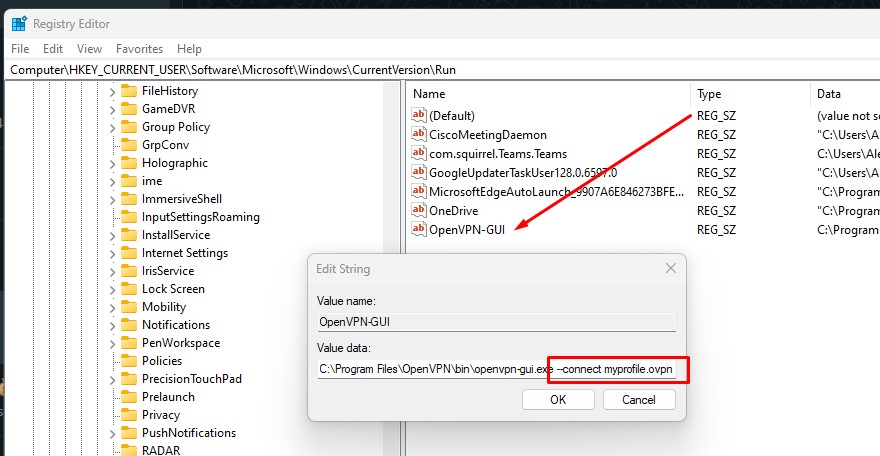
Or you can start regedit, browse to HKEY_CURRENT_USER\Software\Microsoft\Windows\CurrentVersion\Run and amend the OpenVPN-GUI data to “C:\Program Files\OpenVPN\bin\openvpn-gui.exe –connect myprofile.ovpn”

** Note on the double dash ” — ” after connect.

Allowing processes blocked by firewall

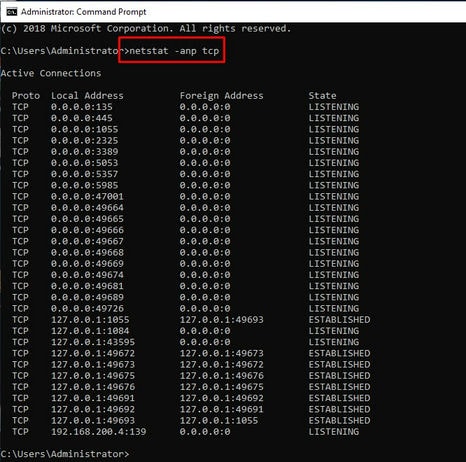
01. List all listening TCP ports with “netstat -anp tcp” in administrator’s CMD.

netstat to list open tcp ports

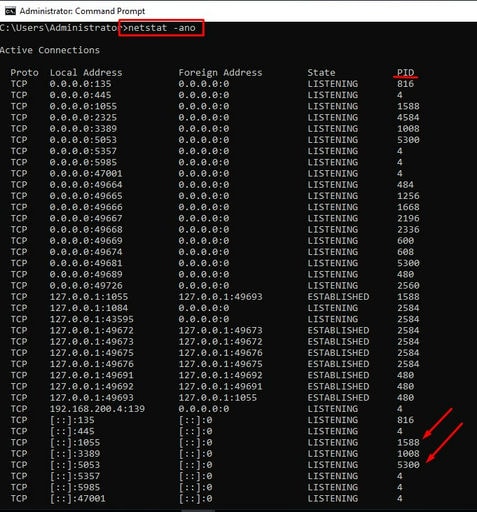
02. Find PID associated with open ports requiring inbound connections.

find PID for process owner

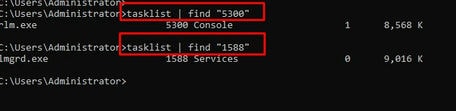
03. Pipe tasklist to find to locate process owner’s name.

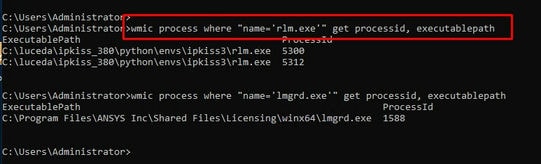
04. User wmic to locate full executable paths of all processes you would like to pass Windows firewall.

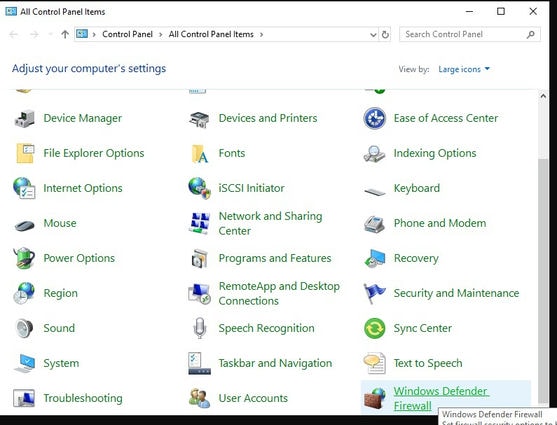
05. Go to Control Panel, All Control Panel Items and select Windows Firewall.

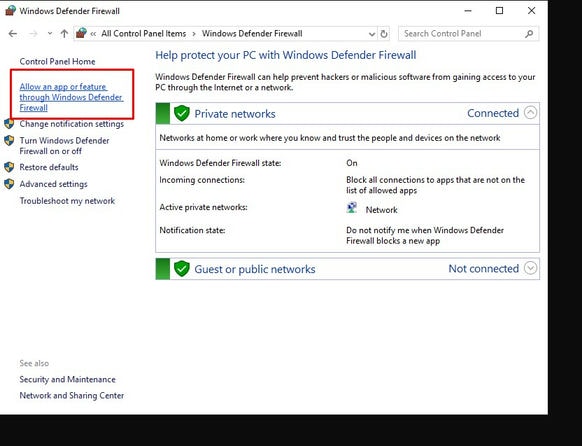
06. Select Allow an app or feature through WIndows Defender Firewall.

GUI allow program through firewall

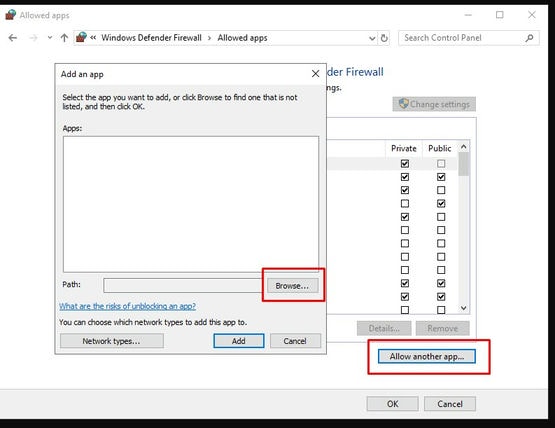
07. Select Allow another app.

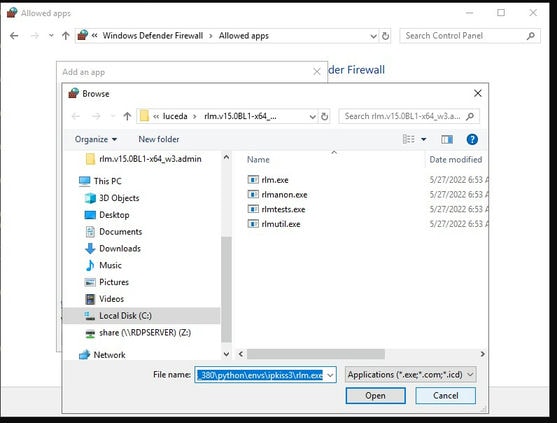
08. Copy from command line process’ full path, paste and click Open.

paste process full path

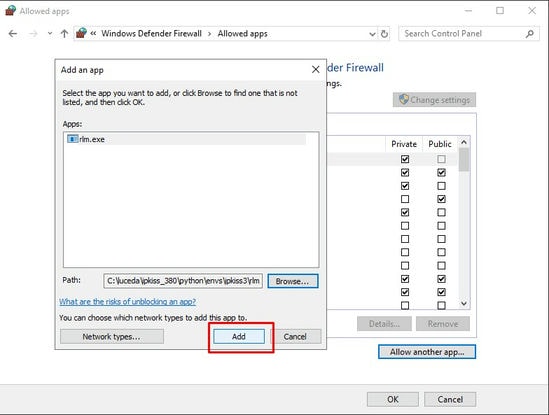
09. Click Add to add the program. Repeat process for all other running processes that are blocked.

Some applications may dynamically assign ports to listen to for inbound connections, adding the program itself will prevent allowing static ports in while blocking all others used by the process.

FortiOS – buffer overflow – CVE-2023-27997

A critical vulnerability discovered in FortiGate SSL VPN enables hackers to infiltrate vulnerable systems and inject malicious code, even when Multi-Factor Authentication (MFA) is activated.

Following Fortinet product versions are affected and firmware should be updated.

Affected Products
FortiOS version 7.2.0 through 7.2.2
FortiOS version 7.0.0 through 7.0.8
FortiOS version 6.4.0 through 6.4.10
FortiOS version 6.2.0 through 6.2.11
FortiOS version 6.0.0 through 6.0.15
FortiOS version 5.6.0 through 5.6.14
FortiOS version 5.4.0 through 5.4.13
FortiOS version 5.2.0 through 5.2.15
FortiOS version 5.0.0 through 5.0.14
FortiOS-6K7K version 7.0.0 through 7.0.7
FortiOS-6K7K version 6.4.0 through 6.4.9
FortiOS-6K7K version 6.2.0 through 6.2.11
FortiOS-6K7K version 6.0.0 through 6.0.14
FortiProxy version 7.2.0 through 7.2.1
FortiProxy version 7.0.0 through 7.0.7
FortiProxy version 2.0.0 through 2.0.11
FortiProxy version 1.2.0 through 1.2.13
FortiProxy version 1.1.0 through 1.1.6
FortiProxy version 1.0.0 through 1.0.7

CVE-2023-27997 denotes a crucial heap buffer overflow vulnerability within Fortinet’s FortiOS SSL-VPN pre-authentication module.

Its exploitation permits an overflow of data from a designated memory block into adjacent blocks in the heap, enabling the execution of arbitrary code and facilitating malicious program activities.

SSL VPNs are typically relied upon for establishing secure connections to private organizational networks and the vulnerability could grant cybercriminals access to any networks and products assumed to be safeguarded.

This vulnerability exploit pre-authentication without privileged credentials allowing attackers to elude interception and escalate likelihood of successful data breach attempts.

Suggested response actions to mitigate the impact of CVE-2023-27997, is to upgrade to the Latest FortiOS Firmware Release and/or disable SSL-VPN on all impacted devices is it is not actively in use.

To shutoff SSL-VPN access, follow this link.

Follow Fortinet’s best practice on hardening your network devices.

PayNow Possible Info Leak

Getting a call from a long lost “friend” whom you don’t recall knowing?

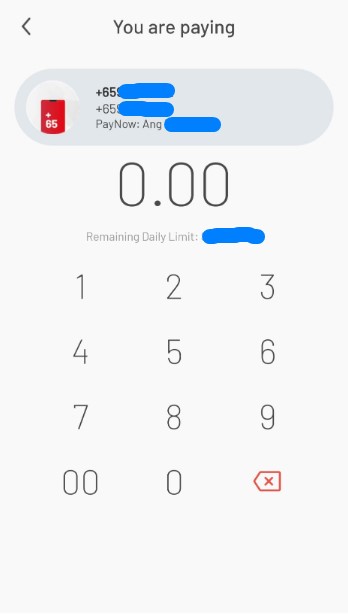
These are from scammers that are using the name provided on your PayNow-linked mobile number and pretending to be someone you know.

Your name or alias is shown when someone attempts to pay you via your mobile number.

Chances are they know about you as much as the hawker stall you paid your food for using PayNOW/PayLah! method.

You can change your name to Salvatore and chances are scammers will be calling and looking for Salvatore.

Is Microsoft ditching SMS for Multi-Factor Authentication (MFA)?

Microsoft is discontinuing support for SMS in specific sign-in scenarios. This includes sign-ins from new devices and those that need multi-factor authentication (MFA).

The reason behind this move is to step up security and minimize the chances of unauthorized access.

Typically, the concern arises because employees might not want to use their personal mobile devices to verify their access.

Customers have the option to establish a conditional access policy to reduce the frequency of MFA prompts when they’re in trusted locations. To do this, you’ll need at least one Azure AD P1 (Microsoft Enterprise ID P1), Office 365 E3 Plan, or Office 365 Business Premium subscription.

Another choice is to get a FIDO2 key or a FIDO2-compliant pass for each user. If you encounter any difficulties while setting up MFA using these methods, feel free to reach out to us for assistance.

What happen if your email password is compromised?

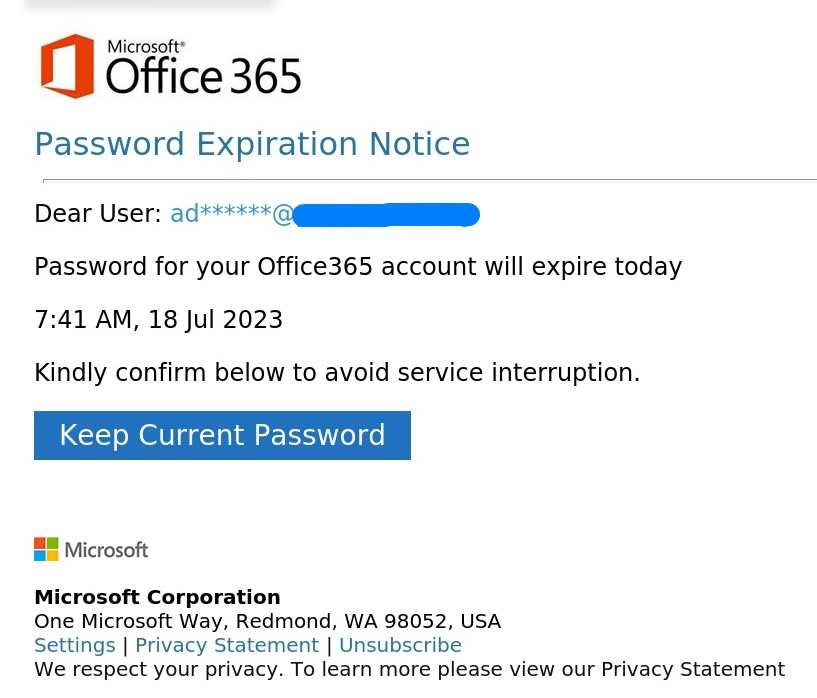
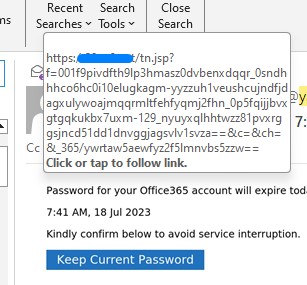
The typical situation where an email password is compromised is from a successful phishing attempt – password was leaked to a fake Microsoft or Google site after clicking on a suspicious email and authenticating with credentials.

phishing password expiry

First picture shows a typical phishing email. Subsequent picture shows phisher's destination site when hovering mouse over the link.

The perpetrator will then authenticated and maintain a persistent session on web mail, stealthily monitor your email communications and then get information on the correspondence that you have.

This is particularly damaging if the email account is a business account. It does not matter if you are a trade creditor or trade debtor. Once these details are available to them, they can construct another email engineered to trick either you (posing as your supplier) or to your supplier (posing as you) and request a pending payment to be paid to another bank account due to some banking issues.

A misspelled domain (1 as l or vice versa) or a similar sounding domain will be registered and a fake email account created. It will be so similar to such an extend that other than the domain name, the sender’s name (even case sensitively similar), signature, message content and sentence construct will be exactly the same.

The victim will then be instructed to pay to the scammer’s bank account and may realize only when supplier start asking them for payment.

Some steps that IT administrators can take are:

  1. Enforce Multi-factor authentication for email access using mobile OTP or authenticator apps.
  2. Train users to identify phishing email through phishing simulator (Microsoft or third party) and conduct constant training for new and existing users.
  3. Enforce modern authentication, password strength, complexity and set a password expiry period.
  4. Force sign-out all sessions for each password change to prevent session using cached credential.
  5. For users not accessing email externally, disable Outlook Web Access (webmail), insecure protocol, POP3 and IMAP access.
  6. Monitor Azure AD sign-in logs for suspicious failed or successful sign-ins outside of your geographic location as it may indicate successful phish attempts. If necessary, force password reset and sign-out all sessions.
  7. Tag external emails with warning message and educate users on why an email is tagged as external when it seems to be from someone within the organization and to be cautious of attachments/links within such emails. Explain to users that emails tagged as external are sent from external parties even though it may appears to be from someone within the organization. All such emails especially the later should be handled with caution.

Disable App Install from External Sources – Android

Mobile OS’s default app store like Apple Playstore, Android’s Google Play or Huawei App Gallery published only approved apps that are checked for malicious or suspicious code and it is the safest way to install mobile apps.

Scammers utilizes ads to entice unknowing users to install malicious remote access/control tool through directly downloading to your device, disable security checks, installing and running it.

Enabling 3rd party APK installation permission on an app in android (e.g. Chrome) also risks allowing future drive-by installation of unknown apps that may be contains malicious code as it does not require intervention to download and install malicious program files.

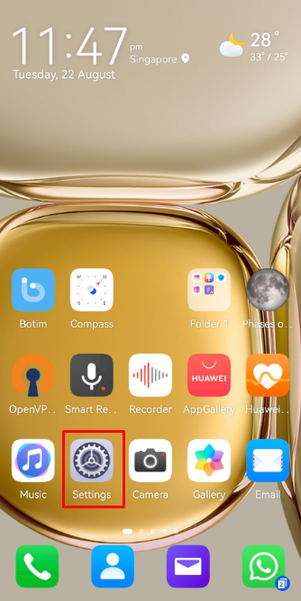
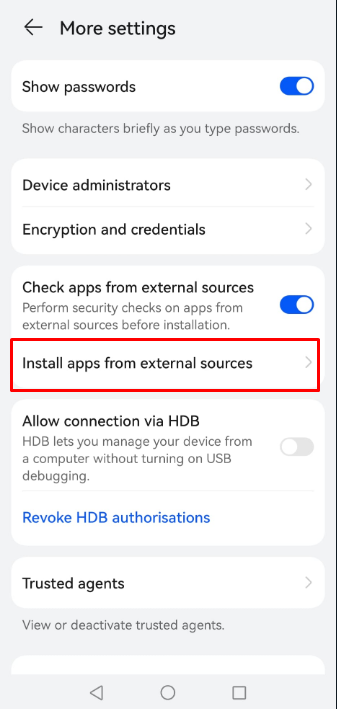
Here are steps to check if any of your installed apps is allowing APK installation from unknown sources on your Android device. My device is a Huawei and it may varies slightly from your mobile brand.

1. Click Settings

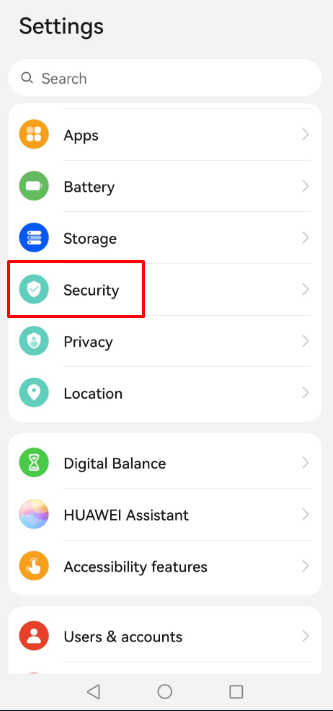
2. Scroll through the list for Security option and click on it.

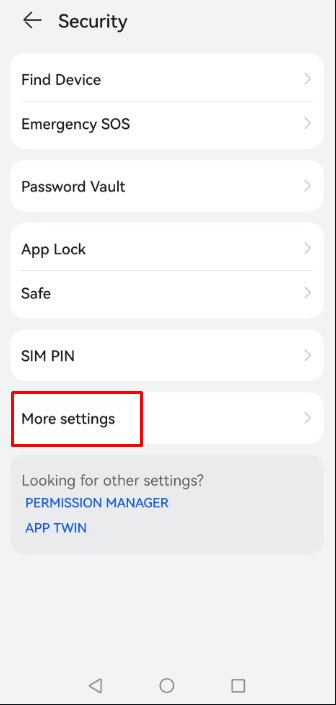
3. Look for More Settings. On some version, there may be an App option which can allow you to toggle and disable install permission directly on each of the installed apps in the list.

3. Click install apps from external sources

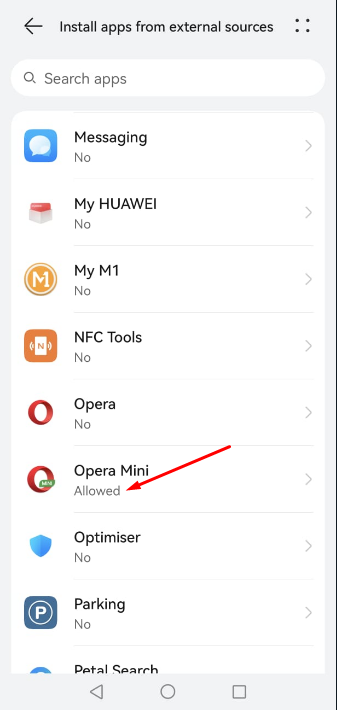
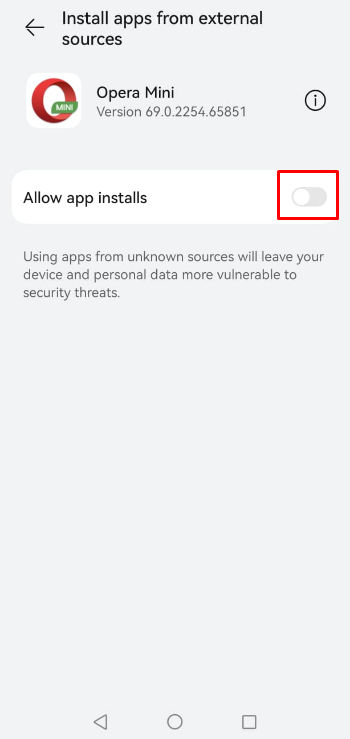
4. Scroll through your list of installed apps and look for any that has “Allowed” instead of “No”.

5. Toggle the button off (grey out) to disable it.

Stealing passwords and impersonation are some of their key agendas and with present day’s powerful smartphones, there are no telltale signs of your device being compromised.

To minimize malicious apps from capturing passwords using keylogger programs, you should enable biometric login to your important apps (e.g. bank, government, even SMS) if it is available. Also, turn off data and wifi access when your are charging at night. (reducing availability to unauthorized call home or remote access)

Consider getting a robust antivirus and security tool to protect and actively monitor for suspicious activities on your device.

Consider getting an antivirus program for your PCs and portable devices to monitoring and block any malicious activities.

Dr Web Security Space consist a suite of security tool to protect both your PC and your mobile device using on a single license.

Actively preventing is better than reacting only after suffering financial loss due to compromised account from malwares.

Contact us if you require assessment on business licensing for your environment.

What causes data loss?

Some common scenarios would be – two disks failure in a RAID 5 system, disk controller failure in any type of setup, ransomware (delete shadow, encrypt and delete), mechanical failure, accidental or malicious deletion.

Well planned backup is important. Poorly planned backup may fill your disks with stale data or old data while denying any additional new data from being backed up. Data that has not been accessed for a long time should be archived and moved to offsite facility for long term retention e.g. Iron Mountain.

Other option would be cheaper cold-tier cloud storage e.g. Azure Cloud or Google Cloud. There is also BackBlaze B2 that is reasonably cheap but offers hot storage. These are generally cheap to archive but expensive to restore.

On Windows servers or desktops, a forfiles command from command prompt will give you an indication of what are the files that have not been modified for the period you specify.

e.g. ForFiles /p “D:\LogFiles” /s /d -365
shows modified files 1 year before

Keep your initial disk array information in your documentation if it is not the default as it will make your data recovery from a RAID setup less painful. Create multiple images of varying setup will be stressful in situation where the disks are already failing.

Backup is a specialized area in IT and it requires proper planning, sizing, managing of duplicate / stale data, and ultimately to achieve your recovery point objective and recovery time objective. A unified backup strategy has to cover an array of different data structures – hypervisors, virtual machines, containers, databases and cloud. We provide solutions for backup and data recovery.

Tired of managing IT daily operation, security, malwares, backups, system updates and patches? Talk to us on our IT managed service and let us take care of your office’s IT needs.