
The 30-Minute Audit: 7 Small Business Tasks You Can Automate in Microsoft 365 This Week

If you’re running a 2-10 person team, your biggest cost isn’t software. It’s the 2 hours a day lost to repetitive admin. The good news: most of it can be automated right inside Microsoft 365 with Copilot and Power Automate, no developer needed.

Here’s what to tackle first, with exact steps you can set up this week:

1. Client follow-ups that never slip through

The problem: You send a quote or invoice, then forget to check if they opened it or replied.
The fix: Use Outlook + Copilot + Power Automate.
Set a rule: when you send an email tagged “Follow-up in 3 days”, Power Automate creates a Teams task and drafts a reminder email. Copilot writes the reminder based on the original thread so it doesn’t sound robotic.
Time saved: 1-2 hours/week per sales person.

2. Turn meeting notes into action items automatically

The problem: Meetings end, nothing happens because notes live in 3 places.
The fix: In Teams, turn on Copilot meeting recap. After the call, have Power Automate push action items to Planner or To Do, assign owners, and post a summary in the project channel.
Time saved: 30 min per meeting. No more “who was doing that?”

3. Invoice and expense data entry

The problem: Manually typing invoice details into Excel or accounting software.
The fix: Use Power Automate + AI Builder. Set up a flow that watches a shared email inbox or SharePoint folder, extracts data from PDFs, and dumps it into Excel or pushes to QuickBooks/Xero.
Time saved: 2-4 hours/week for ops/admin.

4. Client onboarding without 15 emails

The problem: Onboarding a new client means sending the same docs, links, and forms every time.
The fix: Build a “New Client” template in SharePoint with a Power Automate flow. One form submission creates the client folder, sends a welcome pack, schedules a kickoff meeting, and adds them to your CRM list.
Time saved: 45 min per client. Looks way more professional too.

5. Social media and content drafts

The problem: You know you should post more, but writing takes forever.
The fix: Use Copilot in Word to turn a client case study or sales call transcript into 3 LinkedIn posts and 1 email blurb. Schedule it with Microsoft Publisher or Buffer.
Time saved: 1 hour/week. Keeps you visible without hiring a marketer.

6. Sales pipeline updates from email

The problem: Your CRM is always out of date because no one logs calls.
The fix: Use Copilot in Outlook to summarize client emails and auto-update a SharePoint list or Dynamics CRM. Set a rule: emails from clients get flagged, Copilot extracts deal stage and next step.
Time saved: 1 hour/week per salesperson. Your pipeline stays accurate.

7. Daily briefing so you start focused

The problem: You open 20 tabs and 50 emails and lose 30 min figuring out what matters.
The fix: Use the new Autopilot/Scout daily briefing in Windows 11. It pulls urgent emails, meetings, and tasks from Teams, Outlook, and Planner into one summary each morning.
Time saved: 20-30 min every morning. You start the day with a plan.


How to actually make this happen without losing a week

  1. Pick one task from above that annoys you most. Don’t try all 7 at once.
  2. Block 30 minutes on a Tuesday or Wednesday morning when things are quiet.
  3. Use Copilot Chat to help you build the flow. Prompt: “Create a Power Automate flow that watches my inbox for emails with ‘Invoice’ and saves the PDF to SharePoint.” It’ll write the steps for you.
  4. Test it with 3 real examples before turning it on for everything.
  5. Measure it. If it doesn’t save at least 30 min/week, tweak or drop it.

The rule of thumb for small teams

If you do a task more than 3 times a week and it takes more than 5 minutes, it’s worth automating. Microsoft 365 already has the tools – Copilot handles the thinking, Power Automate handles the clicking.

The goal isn’t to run a “tech-forward” business. It’s to stop doing work that a computer can do, so you and your team can focus on clients, sales, and the stuff that actually grows revenue.


Stop wasting time on tasks Copilot can do for you.

Start your Microsoft 365 with Copilot trial now and automate your week in under 30 minutes.

Questions? Contact us today — we’ll set you up with the right plan, fast.

[Get Started] | [Talk to an Expert]

Making AI and Copilot Actually Useful for a Small Business

Most small teams don’t need a sci-fi AI that replaces staff. You need something that shaves 30 minutes off admin work, helps you write faster, and keeps client work moving when you’re stretched thin. That’s where Microsoft 365 Copilot and the new on-device AI features fit in.

1. Cut admin time in Outlook and Teams

This is where small businesses feel the pain first. Inbox overload, missed follow-ups, and meeting notes that never get written.

How to use it:

  • In Outlook, use Copilot to draft replies based on past emails. It pulls context so you’re not starting from scratch.
  • Ask Copilot to summarize long email threads before a client call.
  • In Teams, turn on Copilot during meetings to auto-generate notes, action items, and decisions. After the call, you can ask “What did we agree on for the Smith project?” and get an answer in seconds.

For a 2-10 person team, this alone can save 3-5 hours a week on admin.

2. Speed up document and proposal work in Word and Excel

You don’t need a full-time writer or analyst to get decent drafts and reports.

How to use it:

  • In Word, give Copilot a rough outline or a few bullet points and have it turn it into a client proposal, SOP, or internal memo. Edit it yourself so it sounds like you.
  • In Excel, upload a messy CSV and ask Copilot to clean it, create a pivot table, or explain trends in plain English. No formulas needed.
  • Use it to compare versions of contracts or quote sheets and highlight what changed.

3. Use on-device AI for quick, private tasks

With the new Autopilot and Scout features rolling out, some AI tasks will run locally on newer Windows PCs. That means faster responses and less data leaving your machine.

How to use it:

  • Ask Autopilot to organize your day based on your calendar and inbox before you start work.
  • Use it to prep daily briefings without waiting for cloud processing.
  • For sensitive client data, local AI keeps more of the processing in-house.

4. Keep it practical with a simple workflow

The mistake most small businesses make is turning Copilot on and expecting magic. You get value by building it into existing routines.

Example day for a 5-person team:

  1. Morning: Check Copilot’s daily briefing in Outlook. It summarizes urgent emails, upcoming meetings, and flagged tasks.
  2. During work: Use Copilot in Word/Excel to draft client docs and analyze sales data on the fly.
  3. End of day: Ask Teams Copilot for a summary of what was discussed and update your project tracker.

5. Control costs and data

Since Copilot is now included in business M365 plans, you’re already paying for it. The key is to make sure you use it enough to offset the price hike.

Do this:

  • Turn off Copilot for staff who won’t use it. You can manage this per user in the Microsoft 365 Admin Center.
  • Set data policies so client info doesn’t get used to train external models. Microsoft’s enterprise data protection keeps your data within your tenant.
  • Train staff with 30-minute sessions. The tool is only as good as the prompts you give it.

6. Start small, measure, expand

Pick one pain point. Maybe it’s writing quotes, following up on leads, or meeting notes. Use Copilot for just that task for 2 weeks and track how long it takes vs. before. If it saves time, roll it out to another area.

For a small team, the win isn’t replacing people. It’s getting back time for sales, client work, and actual growth instead of paperwork.


Bottom line: AI and Copilot in 2026 are less about hype and more about removing friction from daily work. If you set it up right and train your team to use it for specific tasks, you’ll see the time savings show up fast.

Curious how AI could help with your day-to-day headaches? Drop us a message and we’ll quickly map out the right Microsoft 365 setup for your team.

Microsoft in 2026: AI Goes Local, Prices Shift, and Copilot Gets Real

Microsoft is making 2026 the year AI stops living in the cloud and starts working right on your PC.

Instead of sending everything to Microsoft’s servers, your laptop will handle more of it locally.

Microsoft in 2026: What’s different for you

Windows PCs are getting smarter brains
Forget sending everything to the cloud. Microsoft is testing “Autopilot” and “Scout” — new AI agents that can read your inbox, calendar, and Teams data locally to draft briefings, organize emails, and prep replies for you. It’s all timed with new Nvidia ARM chips built for on-device AI. The idea is faster, more private AI that doesn’t need an internet connection for basic tasks.

Copilot is now baked into Microsoft 365, but nothing’s free
Starting July 1, Copilot will be included in all business Microsoft 365 plans at no extra charge. Sounds great, but Microsoft is also raising M365 prices overall as AI becomes a core feature. Google did the same with Gemini. The message is clear: AI isn’t an add-on anymore, it’s the default.

Microsoft is building its own AI models
To cut costs and reduce reliance on OpenAI, Microsoft launched homegrown coding models at Build 2026. GitHub Copilot now lets you pick the model that fits your task, aiming for lower latency and more predictable results for developers.

The catch: cost and real value are still messy
Microsoft’s own research shows a paradox — 65% of employees worry about falling behind if they don’t use AI, but only 13% are actually rewarded for experimenting with it. Companies are seeing higher operational costs without clear ROI yet. And despite billions in AI spend, Copilot has less than 15M paid seats so far.

Security and product shakeups keep coming
June’s Patch Tuesday hit 165 CVEs, with one already under attack. Microsoft is also retiring Outlook Lite and Windows 11 SE this year, and cleaning up the confusing Windows Insider program. On the infrastructure side, Azure data center shortages in the US are sticking around, with Microsoft planning $190B in capital spend for 2026 to catch up.

Bottom line
2026 is Microsoft’s “substance over spectacle” year. The push is for AI that actually helps you day-to-day, runs on your device, and is built into the tools you already use. But expect higher bills, product changes, and a lot of pressure on companies to prove AI is worth it.

If you’re on Microsoft 365, the next 6 months will change how you work. The real question for most business owners is: will this actually save you time and money, or just add another line to your bill? For small teams of 2-10 people, the answer depends on how you use it.

Here’s how to make AI and Copilot work for you day to day.

Microsoft 365 Business Basic without Teams: The “Quiet Upgrade” for Exchange Plan 1 Users

If you’re on Exchange Online Plan 1, you’ve got email. That’s it. It works, but it’s like having a phone with no contacts, no cloud storage, and nowhere to put shared files.

Microsoft 365 Business Basic without Teams fixes that gap without throwing chat, meetings, and app sprawl into the mix. Think of it as Plan 1 growing up.

What changes on day one

  1. Your inbox stops being a file dump
    Plan 1 gives you 50GB mailbox storage. Basic gives you the same, plus 1TB of OneDrive per user. Suddenly you’re not emailing yourself 20MB PDFs and clogging attachments. Save to OneDrive, share a link, done.

From a productivity angle, this cuts the “Where did I send that file?” loop. OneDrive integrates directly into Outlook, Word, Excel. No context switching, no “let me upload this to Google Drive real quick.”

  1. SharePoint becomes usable without IT hand-holding
    Plan 1 doesn’t include SharePoint licensing. Basic does. That means every user can access company document libraries, sync them to File Explorer, and co-edit without emailing versions back and forth.

The productivity win here is version control and co-authoring. Two people edit the same client proposal at once. No “Final_v7_REALLYFINAL.docx” chaos. It feels small until you realize how much time you lose reconciling conflicting edits.

  1. Backup and recovery moves off your shoulders
    With Plan 1, if a user deletes a file or gets hit with ransomware, you’re restoring from PST exports or hoping IT has backups.

OneDrive and SharePoint in Basic give you 30-day recycle bins, version history, and retention policies out of the box. Users self-serve “undo” on deleted files. Fewer tickets to IT, less downtime, less panic at 4:50 PM.

Why the “no Teams” version matters for cost

A lot of businesses already paid for Zoom, GoToMeeting, RingCentral, or some other video/comm stack. They don’t need another subscription for meetings they won’t use.

Microsoft 365 Business Basic with Teams forces you to pay for a feature that sits idle. The version without Teams gives you the backend you actually need – OneDrive, SharePoint, Exchange – without double-paying for comms.

That’s real cost savings:

  • No license waste on unused Teams meetings and phone features.
  • No retraining users on a second video platform.
  • No admin overhead managing 2 sets of meeting links, recordings, and policies.

You get the file and email upgrade now, and keep Zoom for meetings if it’s already working. Later, if you want to consolidate, you can switch the plan. No lock-in.

Who this upgrade makes sense for

  • Exchange Plan 1 users who live in email and attachments: If your workflow is “email comes in → file goes somewhere,” OneDrive + SharePoint closes the loop.
  • Teams with existing video tools: Already paying for Zoom/Meet? Keep it. You don’t subsidize a tool you don’t touch.
  • Small teams with compliance needs: Retention policies, audit logs, and eDiscovery come with Basic. You get control without paying for E3.
  • Companies avoiding chat fatigue: If Teams rollout failed last time, this lets you get the backend benefits without forcing another communication channel.

The productivity math

Let’s be blunt: the ROI isn’t in new features. It’s in removed friction.

  • No more “email me the file” → 2 min saved per share.
  • No more duplicate files → 10 min saved per doc when reconciling.
  • No more “I deleted it, can IT restore?” tickets → 30 min saved per incident.
  • No wasted spend on unused Teams → $6/user/mo saved if you’re already on Zoom.

Multiply that by 20 users and 5 incidents a month, and the upgrade pays for itself in time alone.


Bottom line: Microsoft 365 Business Basic without Teams is for teams that want cloud file storage, backup, and collaboration without changing how they communicate or wasting money on redundant subscriptions. It’s an infrastructure upgrade disguised as a plan change.

If you’re still on Plan 1, the question isn’t “do we need Teams?” It’s “are we okay with email being our only shared workspace in 2026, and are we paying twice for meetings?

Want to see which Microsoft plan gives your team the best value? Compare Plan 1, Basic without Teams, and Basic with Teams in a quick cost breakdown. Reach out if you have questions.

Joining a device to AzureAD

Joining a device to Azure AD / Microsoft Entra ID is basically making that laptop or desktop a “managed” part of your cloud tenant instead of a standalone Windows machine.

Here’s what you get from a productivity + IT standpoint:

1. Single Sign-On + Passwordless

  • User logs in with their Entra ID account once. That same identity unlocks Microsoft 365, SharePoint, OneDrive, SaaS apps like Salesforce, Zoom, etc.
  • Supports Windows Hello, passkeys, FIDO keys. No more “remember 12 passwords” or password resets eating IT time.
  • Benefit: Faster logins, fewer helpdesk tickets, less phishing risk.

2. Centralized Management with Intune

Once joined, you can manage the device with Microsoft Intune:

  • Push apps, settings, security policies automatically. No manual setup per device.
  • Enforce BitLocker encryption, firewall rules, updates, browser configs.
  • Remotely wipe or lock if a laptop is lost.
  • Benefit: IT can manage 10 devices or 1000 devices from one console.

3. Conditional Access & Zero Trust Security

You can set rules like: “Only allow access to company data if the device is Azure AD joined, compliant, and user is MFA’d.”

  • Stops unmanaged personal devices from pulling sensitive files.
  • Blocks access from risky locations or outdated OS versions.
  • Benefit: Data stays protected without blocking legitimate work.

4. Seamless File & App Access

  • OneDrive Known Folder Move kicks in automatically. Desktop, Documents, Pictures sync to the cloud.
  • Users get access to SharePoint sites and Teams files without extra logins.
  • Apps deployed via Intune show up in Company Portal and install silently.
  • Benefit: New hires are productive in 30 min, not 2 days.

5. Self-Service + Lower IT Overhead

  • Users can reset passwords, join Wi-Fi, install approved apps without calling IT.
  • Devices auto-enroll in management during first setup with Windows Autopilot.
  • Benefit: Less manual onboarding, less break-fix work.

6. Compliance & Auditing

  • You get device inventory, health status, and activity logs in Entra ID.
  • Helps with ISO, SOC 2, GDPR audits because you can prove who had access to what, on which device.
  • Benefit: Pass audits without scrambling for spreadsheets.

7. Offline & Roaming Support

Even when off VPN, the device still trusts the Entra ID identity. Cached credentials + Intune policies keep working.

  • Benefit: Remote/hybrid staff stay secure and productive anywhere.

When it’s better than just “Azure AD Registered” or local AD:

Azure AD JoinedAzure AD Registered Local AD Joined
Full control, Intune mgmtLight mgmt, BYOD onlyOn-prem control, needs VPN
Best for company-owned laptopsBest for personal devices Best for on-prem legacy apps

Caveat: If you have old on-prem apps that only work with Kerberos + domain controllers, you may need Hybrid Join instead.


Bottom line: Joining to Azure AD turns a laptop into a secure, manageable, self-healing endpoint. You cut IT workload, tighten security, and make remote work actually work.

Ready to go fully cloud? We can get your devices joined to Azure AD so you can manage everything from one place. Contact us: simplifyit.com.sg/contact

“Shoestring Backup”: Is File History to a Network Drive Good Enough?

If your budget is basically “coffee and hope,” you’ve probably looked at Windows File History and thought: “I’ll just back it up to the NAS in the closet and call it a day.”

It works. But “works” and “gets you out of a total disaster” are two different things. Here’s the straight answer:

1. What File History actually does

File History backs up versions of files in your Libraries, Desktop, Contacts, and Favorites to another drive – USB, internal, or network. It’s incremental, automatic, and you can roll back to “that spreadsheet from Tuesday at 3pm.”

What it doesn’t do:

  • Back up installed programs/apps
  • Back up Windows itself, settings, drivers
  • Back up files outside your user folders unless you add them manually

So if your computer crashes, you can recover your data, but not your apps or Windows install.

2. What happens if the computer crashes

Scenario A: Hard drive dies, PC boots fine
Plug in a new drive, reinstall Windows, point File History to the network drive → restore your files. You’re back in business in an hour or two, minus reinstalling apps.

Scenario B: Whole PC dies, motherboard/CPU fried
Same deal. As long as the network drive survived, your files are safe. You’ll need another PC and a fresh Windows install.

Scenario C: Ransomware or the network drive gets wiped
This is the gotcha. File History to a single network drive has no air gap and no versioning protection against deletion. If malware deletes the backup share, you’re cooked.

3. Is it “sufficient” on a shoestring budget?

Yes, if:

  • Your priority is personal files, photos, docs, client work
  • You’re okay reinstalling Chrome, Office, Adobe, etc. from scratch
  • The network drive is separate from the PC and has its own backups or snapshots

No, if:

  • You need to be back up and running in 30 min with all apps and settings
  • You can’t afford 2-4 hours of reinstall + setup time
  • You have zero other copies of that data

4. The $0 upgrade to make it actually safe

File History + network drive is 60% of a real backup. Add these 2 things for free/cheap:

  1. 3-2-1 Lite rule: 3 copies, 2 different media, 1 offsite.
    Example: PC → Network Drive → Free Google Drive/OneDrive for critical folders. 5GB-15GB free covers most people’s “can’t lose” files.
  2. System Image once a month: Use Windows “Backup and Restore (Windows 7)” to make a full system image to the same network drive. It’s clunky but lets you restore Windows + apps in one go if the drive is intact.

5. The bottom line

Can you recover your data if the computer crashes? Yes, if the network drive is alive and not encrypted by ransomware.
Can you recover your apps? No. You’ll reinstall.
Is it enough for a shoestring budget? It’s the best you can do for $0. Just don’t treat it as set-and-forget. Test a restore once, and keep your 2-3 most critical folders synced to free cloud storage too.


Want a 10-min checklist to make your File History setup actually disaster-proof for free? Drop “CHECKLIST” and I’ll send you the step-by-step + what to test.

Why did Microsoft introduce Microsoft 365 Business Basic without Teams?

It wasn’t random — it came down to regulation and flexibility.

Microsoft unbundled Teams from Microsoft 365 globally starting in 2023 after the European Commission raised antitrust concerns about bundling Teams with Office. That’s why you now see “with Teams” and “without Teams” versions of Business Basic and other plans.

Here’s why the “no Teams” version exists:

Lower cost for the right teams

If you already use Zoom, Slack, or Google Meet, you don’t need to pay for Teams you won’t touch. The no-Teams plan cuts that cost out.

Avoid paying for overlap

Many small businesses only need business email, web versions of Word/Excel/PowerPoint, OneDrive, and SharePoint. The no-Teams SKU gives you exactly that, without extra apps you’ll never open.

Keep it flexible

You’re not locked out forever. If you change your mind, you can add Teams Enterprise as a separate add-on later. It lets you scale up without rebuying your whole plan.

Bottom line: Microsoft gave orgs a way to buy only what they use, and avoid the 300-user cap workarounds some were doing with mixed licenses.

Curious what the real cost difference is for 25 users? We’ll break down Microsoft 365 Business Basic with Teams, without Teams, and email-only plans like Exchange Online side by side. Send us a message and we’ll handle the rest.

OpenVPN Windows client auto connect on startup

A common issue when accessing shared folders when connecting from remote is forgetting to connect OpenVPN to connect to your office network.

Ideally, OpenVPN should auto connect on startup so that users will not have issue connecting to network share due to this and then subsequently remove the mapping.

One way to get it to run when logged in, is by placing a shortcut in the usual startup folder.

(For all users, %ProgramData%\Microsoft\Windows\Start Menu\Programs\Startup; or for the current user only, %APPDATA%\Microsoft\Windows\Start Menu\Programs\Startup.)

Create shortcut on your desktop pointing to C:\Program Files\OpenVPN\bin\openvpn-gui.exe (verify that the file is located at this location) then cut and paste to either %ProgramData%\Microsoft\Windows\Start Menu\Programs\Startup (current user) or
%APPDATA%\Microsoft\Windows\Start Menu\Programs\Startup (all users)

or in CMD (current user) type

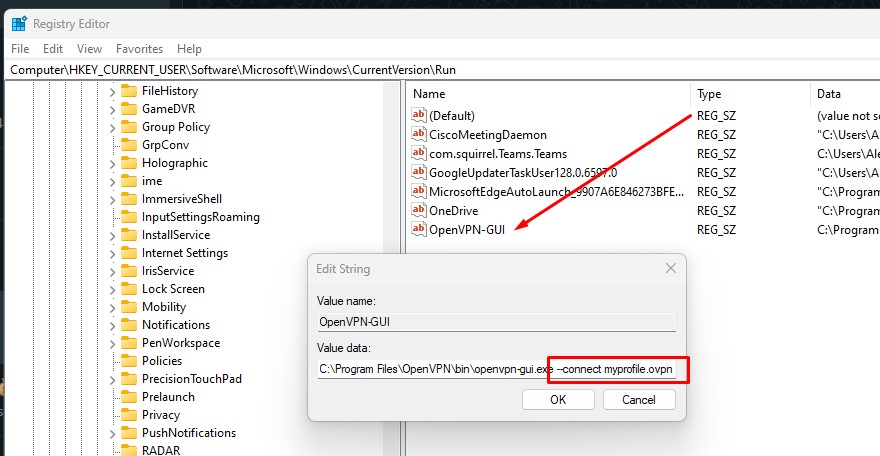
reg add HKCU\Software\Microsoft\Windows\CurrentVersion\Run /v OpenVPN-GUI /t REG_SZ /d \””C:\Program Files\OpenVPN\bin\openvpn-gui.exe –connect myprofile.ovpn\”” /f

replacing myprofile.opvn with the file name of your .opvn profile.

Or you can start regedit, browse to HKEY_CURRENT_USER\Software\Microsoft\Windows\CurrentVersion\Run and amend the OpenVPN-GUI data to “C:\Program Files\OpenVPN\bin\openvpn-gui.exe –connect myprofile.ovpn”

** Note on the double dash ” — ” after connect.

Restricting access using Geolocation via Fortigate

There will instances where you will need to set server to be public serving for remote offices requiring access to applications within your network.

FortiOS versions 7 and above offer Geo-IP restriction features, enabling administrators to control access to internal services based on geographical location. This feature is particularly useful for organizations with remote offices or users who need to access applications within the network from specific countries or regions.

By configuring Geo-IP restrictions, you can:

Allow access to internal services only from specific countries or regions.
Restrict access from countries or regions with high security risks.
Comply with data sovereignty regulations by controlling where data is accessed.
Enhance security by limiting exposure to unauthorized access.

To configure Geo-IP restrictions:

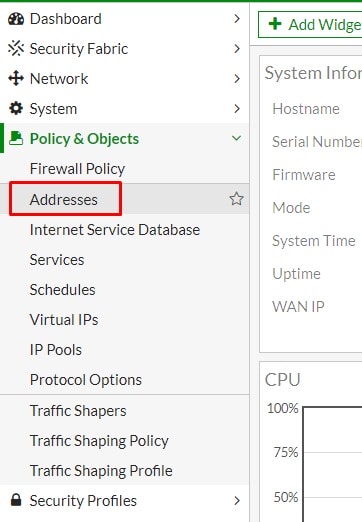
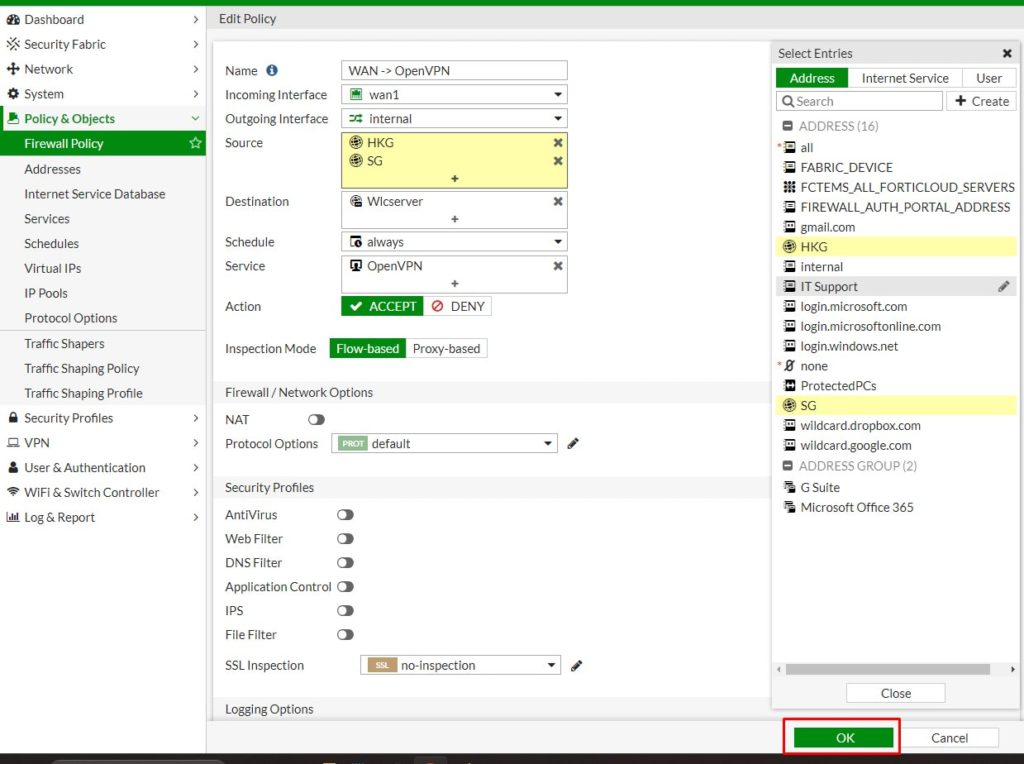
1. Login to your Fortigate admin portal, expand Policy and Objects and select Addresses.

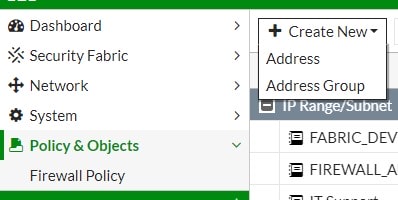
2. Select Create New and select Address.

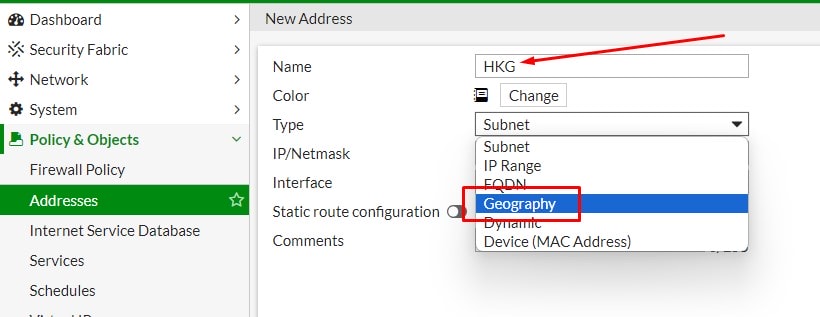
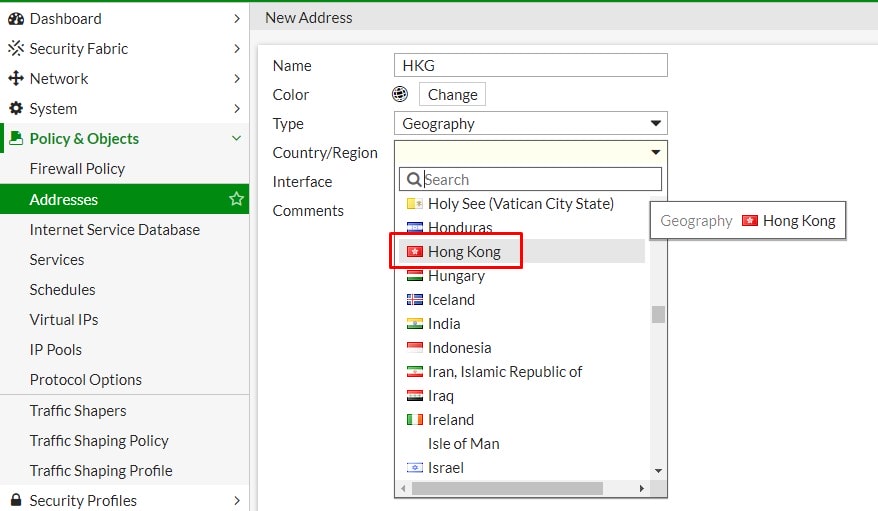
3. Type a name for the location, select Geography from Type dropdown list.

4. Select the country you want to allow.

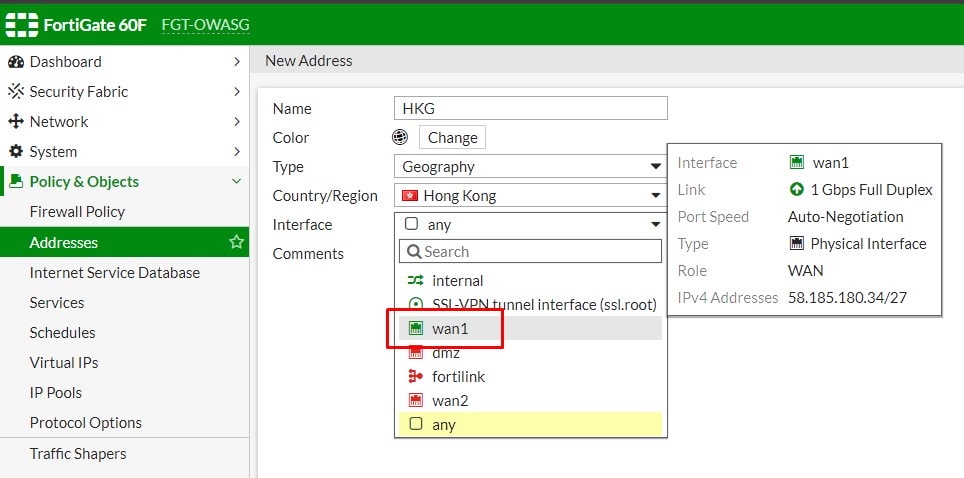
5. Select the interface that this address restriction would apply on.

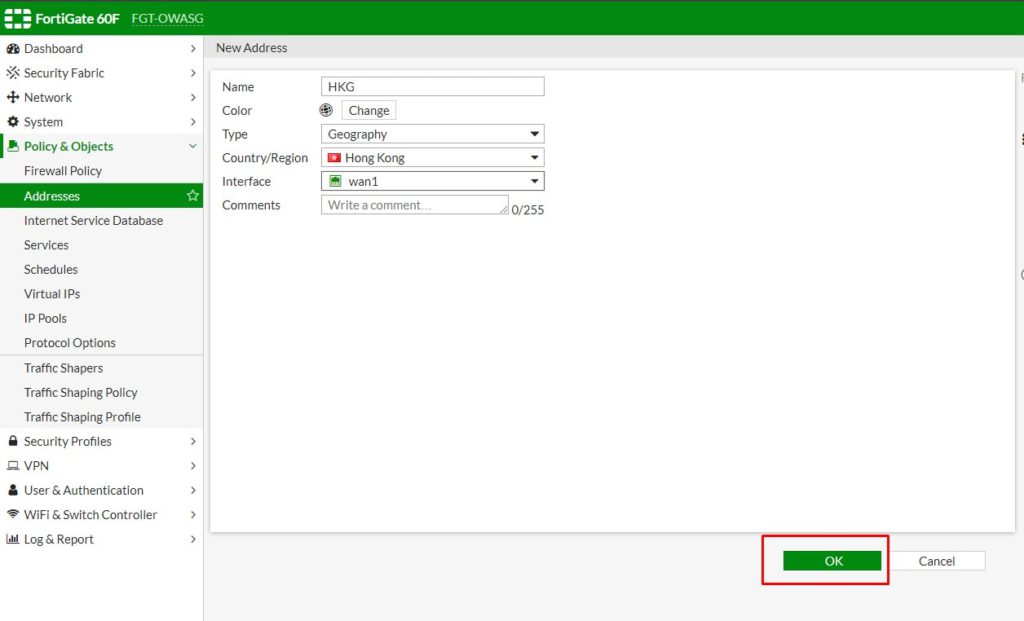
6. Click OK to save.

7. Regions added will appear in Geography address group.

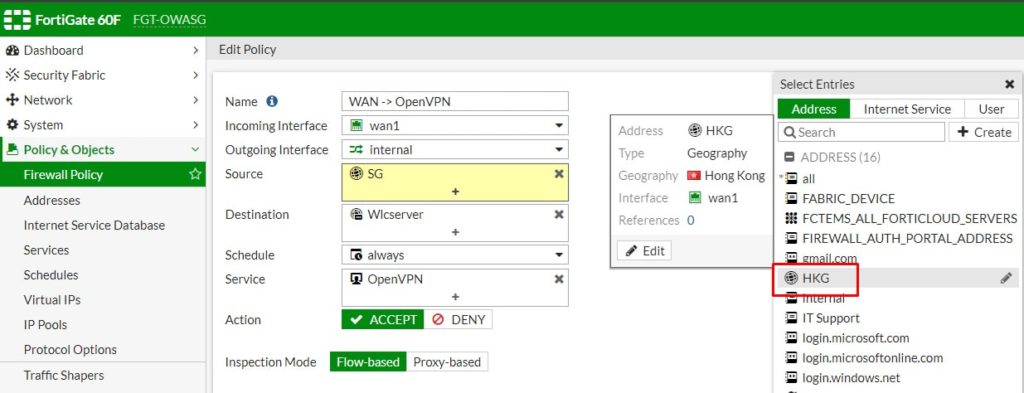
8. Apply the policy by select the newly added address to source option of the policy you would like to add the restriction.

9. Click OK to complete the setup.

By limiting access to internal services from specific countries or regions, you can reduce unnecessary traffic and prevent bandwidth waste.

Geo-IP restrictions can help block malicious traffic from known botnet sources or countries with high cybercrime activity, reducing the risk of automated attacks.

Allowing processes blocked by firewall

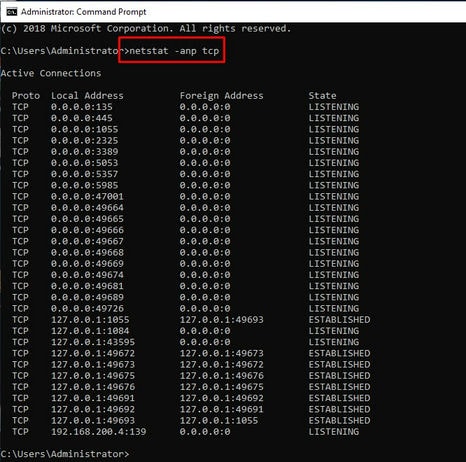
01. List all listening TCP ports with “netstat -anp tcp” in administrator’s CMD.

netstat to list open tcp ports

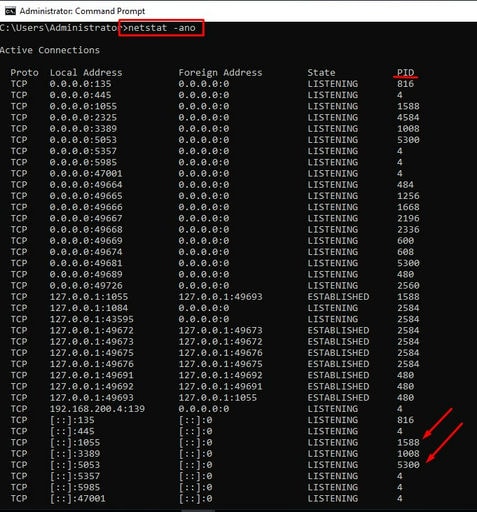
02. Find PID associated with open ports requiring inbound connections.

find PID for process owner

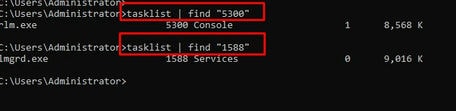
03. Pipe tasklist to find to locate process owner’s name.

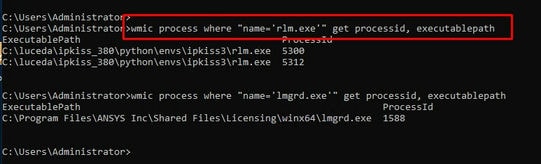
04. User wmic to locate full executable paths of all processes you would like to pass Windows firewall.

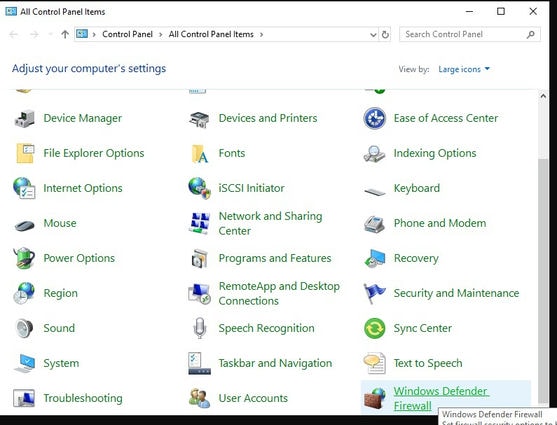
05. Go to Control Panel, All Control Panel Items and select Windows Firewall.

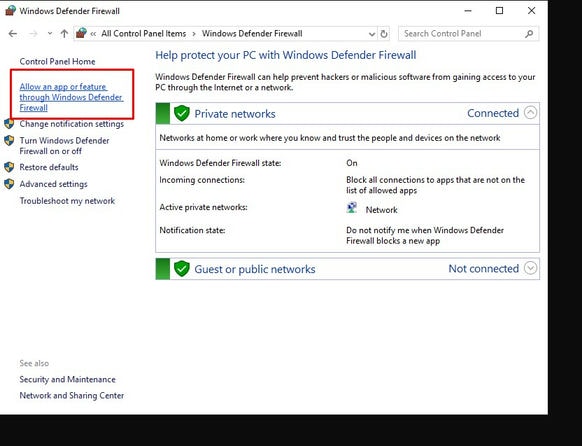
06. Select Allow an app or feature through WIndows Defender Firewall.

GUI allow program through firewall

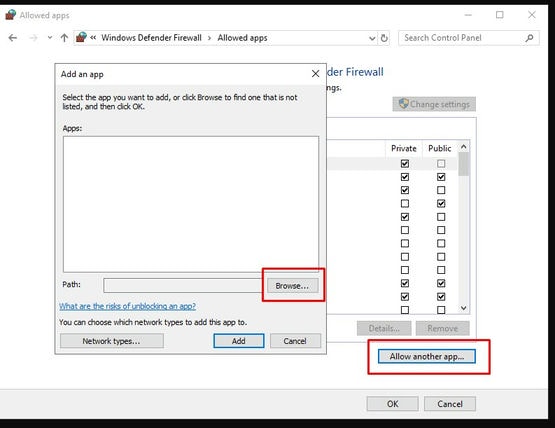
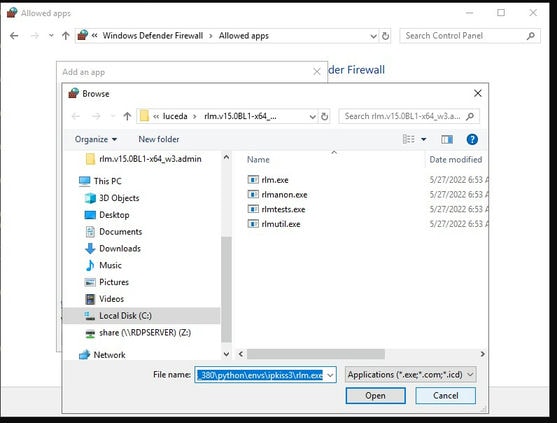
07. Select Allow another app.

08. Copy from command line process’ full path, paste and click Open.

paste process full path

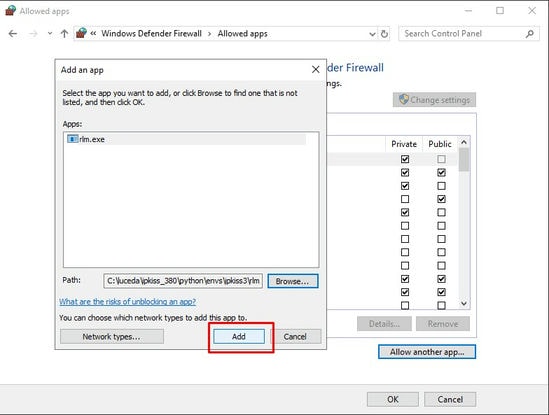
09. Click Add to add the program. Repeat process for all other running processes that are blocked.

Some applications may dynamically assign ports to listen to for inbound connections, adding the program itself will prevent allowing static ports in while blocking all others used by the process.